

Google Ads is one of the most powerful acquisition channels on the planet. Millions of businesses rely on it to drive leads, sales, and revenue. Yet, it is also incredibly easy to burn through thousands of dollars with absolutely nothing to show for it.
The Google Ads platform is designed to make bidding and spending money as seamless as possible. However, the default settings and structural configurations that benefit Google’s bottom line rarely align with your specific profit margins. If you build your campaigns on a flawed foundation, you are essentially donating your hard-earned revenue back to Silicon Valley.
To help you protect your capital and maximize your return on ad spend (ROAS), this comprehensive guide breaks down the 15 most common, budget-draining Google Ads mistakes. We will explore why these errors happen, how they silently siphon your funds, and the exact step-by-step frameworks you need to fix them immediately.
Falling Into the “Smart Campaigns” and Default Settings Trap
When you first open a Google Ads account, the platform makes it remarkably easy to launch your first ad. It guides you toward “Smart Campaigns” or pre-selected default settings designed to get your ads live in minutes.
While convenient, these automated configurations are built to maximize ad exposure, not necessarily your profitability.
The Problem with Smart Campaigns
Smart Campaigns severely restrict your control. You cannot choose your exact keyword match types, view detailed search term reports, or adjust bidding strategies precisely.
Google’s algorithms make all the decisions for you. While machine learning has advanced significantly, it lacks the nuanced understanding of your business goals, profit margins, and specific target audience.
The Hidden Danger of Default Settings
Even if you build a standard campaign, Google auto-selects specific default settings that work against a tight budget:
- Enhanced CPC (eCPC): This gives Google permission to bid over your maximum limit if it believes a click might convert.
- Auto-applied Recommendations: Leaving this checked allows Google to automatically change your bids, keywords, and ads without your manual approval.
- Broad Target Expansion: This expands your location and audience parameters far beyond your core customer profile.
How to Fix It
Avoid Smart Campaigns entirely. Always choose “Expert Mode” when setting up your account.
Take full control of your campaigns by manually reviewing every setting. Uncheck the boxes for auto-applied recommendations, and ensure you retain the final word on where, when, and how your money is spent.
Leaving the Display Network Checked on Search Campaigns
This is arguably the single fastest way to blow through a small budget with little to no return. When you create a new Search campaign, Google automatically checks a box that opts your campaign into the Google Display Network (GDN).
Why This Wastes Your Money
Search network advertising and Display network advertising rely on completely different user psychology:
- Search Ads rely on inbound intent: A user actively types a query into Google because they have a specific problem or desire at that exact second. They are actively looking for a solution.
- Display Ads rely on outbound interruption: A user is browsing a news website, reading a blog, or playing a mobile game. They are not looking for your product. Your visual banner ad interrupts their experience.
When you mix the two networks into a single campaign, Google serves your text ads on random websites across the internet as banners. Because text ads look unappealing on blogs and mobile apps, they generate accidental clicks, bot traffic, and incredibly low conversion rates.
Furthermore, your campaign data becomes heavily distorted. Your click-through rate (CTR) drops significantly, making it impossible to evaluate how well your actual Search campaign is performing.
How to Fix It
Keep your Search and Display campaigns completely separate. Navigate to your campaign settings, find the “Networks” section, and uncheck the box for the Google Display Network. If you want to run Display ads, create a dedicated Display campaign with its own unique assets, budget, and targeting parameters.
Relying Extensively on Broad Match Keywords
Keywords are the foundation of your Search campaigns. However, many advertisers do not realize that how you input those keywords matters just as much as the words themselves.
If you type keywords into your account without any punctuation, Google classifies them as Broad Match.
The Broad Match Overreach
Broad Match gives Google absolute creative freedom to show your ad for any search query it deems vaguely relevant to your keyword. This includes synonyms, related topics, misspellings, and highly tangential phrases.
For example, if you sell high-end “luxury leather shoes” and use broad match, Google might display your ad for queries like:
- “cheap plastic sandals”
- “how to clean leather jackets”
- “shoe repair shop near me”
- “history of shoemaking”
None of these searchers want to buy luxury leather shoes right now. Yet, every time they click your ad out of curiosity, your budget drains.
How to Fix It
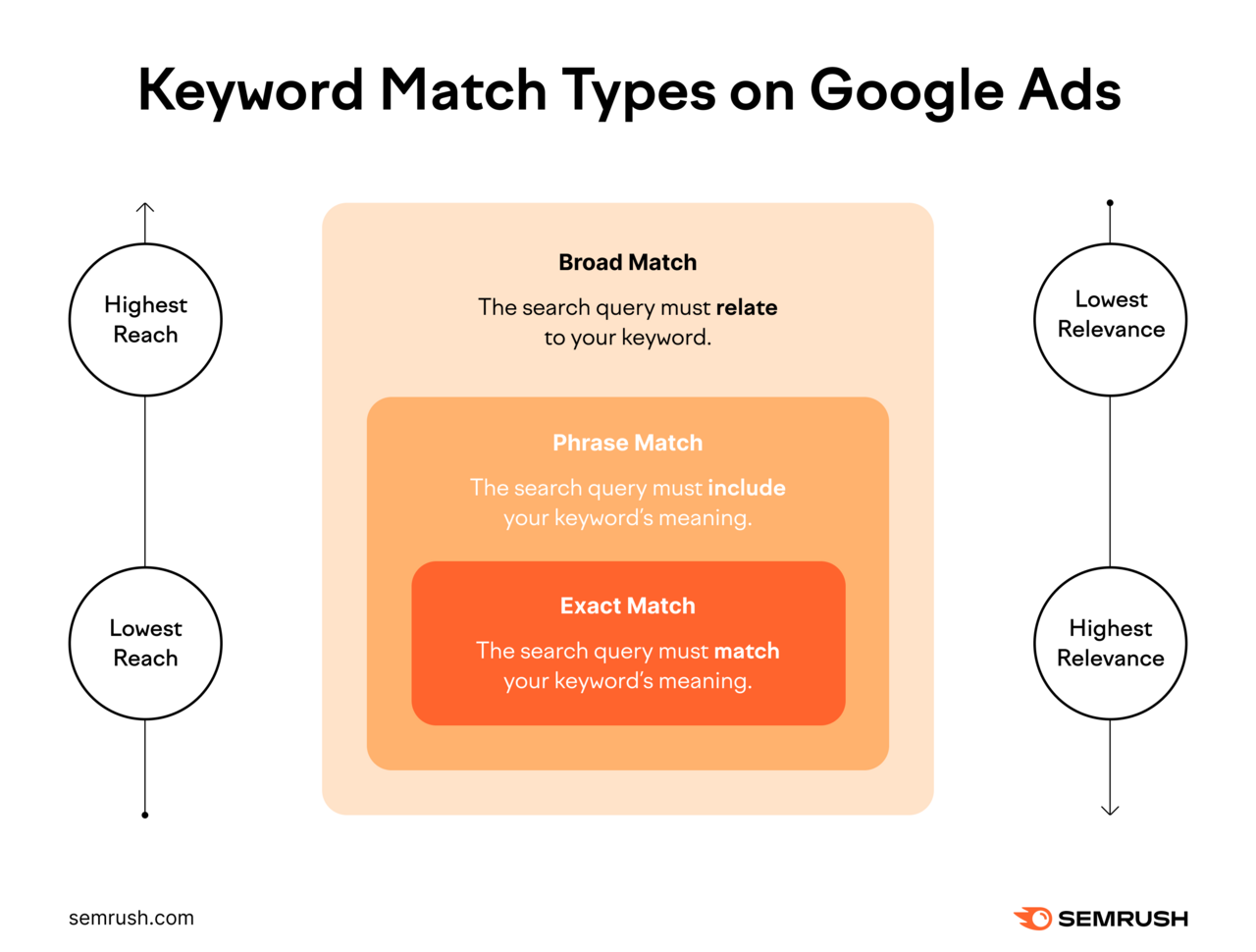
Shift your strategy toward Phrase Match (indicated by “quotes”) and Exact Match (indicated by [brackets]).
- Phrase Match (“luxury leather shoes”): Shows your ad only when the search query includes the core meaning of your phrase, allowing for words before or after.
- Exact Match ([luxury leather shoes]): Limits your ad to queries that share the exact same meaning or intent as your keyword.
While Broad Match can be useful for data gathering in large-budget accounts paired with automated bidding, smaller budgets should stick to the control and precision of Phrase and Exact match.
Neglecting Your Negative Keyword List
Launching a Google Ads campaign is not a set-it-and-forget-it task. Many advertisers select their keywords, launch their ads, and never check what users actually typed to trigger those ads. This lack of oversight leads to massive budget waste on completely irrelevant queries.
The Search Terms Report Reality
There is a massive difference between the keywords you bid on and the search terms users type. If you do not actively guide Google on what you don’t want to show up for, you will pay for useless traffic.
Common budget-draining search queries include:
- Informational searches: Queries starting with “how to,” “why,” “definition of,” or “free course.”
- Job seekers: Queries containing “jobs,” “careers,” “salaries,” or “interviews.”
- Competitor traffic: Users searching for a specific competitor’s login page or customer support number.
- Bargain hunters: Queries containing “cheap,” “free,” “discount,” or “clearance” when you sell premium items.
How to Fix It
Make it a weekly routine to audit your Search Terms Report. Identify any query that brought traffic but is irrelevant to your business goals.
Add those terms to your Negative Keyword List. You can apply negative keywords at the ad group, campaign, or account level to block unwanted traffic before it costs you a single dollar.
Blindly Trusting Google’s “Optimization Score” and Recommendations
When you log into your Google Ads dashboard, you are frequently greeted by a prominent percentage metric known as your Optimization Score. Google often sends notifications warning you that your score has dropped and provides a list of recommendations to raise it back to 100%.
The Conflict of Interest
It is vital to understand that Google is a publicly traded corporation. Their primary revenue source is advertising spend.
While many of their automated tools are helpful, their recommendations are fundamentally designed to make your account spend money faster and broader.
Common recommendations that can destroy a tight budget include:
- “Switch to Broad Match keywords” (expands your reach massively)
- “Raise your budgets to prevent missing out on traffic”
- “Use automated bidding strategies” (before your account has enough baseline conversion data)
Achieving a 100% Optimization Score does not mean your campaigns are highly profitable. It simply means you have conformed your account architecture to Google’s preferred automated blueprint.
How to Fix It
Treat every recommendation as a hypothesis rather than an order. Analyze each suggestion through the lens of your specific business objectives and budget constraints.
If a recommendation suggests expanding your keywords to broad match or raising your daily budget beyond your comfort zone, dismiss it. Dismissing a recommendation manually restores your Optimization Score percentage without altering your actual campaign structure.
Sending Ad Traffic to Your Website’s Homepage
When a business owner wants to drive traffic to their brand, their natural instinct is to send everyone directly to their main website homepage (://yourcompany.com). While this makes sense for brand-awareness campaigns, it is an incredibly costly error for targeted PPC campaigns.
Why This Destroys Your Budget
A corporate homepage is typically designed to act as a general informational hub. It features main navigation links, an “About Us” section, links to press releases, blog feeds, carrier information, and multiple product categories. It offers too many options.
When a user types a hyper-specific search query into Google—for example, "emergency commercial pipe repair"—and clicks your ad, they expect an immediate, hyper-relevant solution to that exact problem. If your ad dumps them onto a generic plumbing homepage, they now have to hunt through menus to find commercial services, find your emergency number, and figure out if you service their area.
Faced with this friction, the user will hit the back button within seconds. You paid full price for that click, but the visitor bounced because your landing page failed to immediately fulfill the specific promise made in your ad text.
How to Fix It
- Build Dedicated, Single-Purpose Landing Pages: For every ad group or core keyword theme, construct a tailored landing page that matches the search intent perfectly.
- Remove Distractions: Strip away the standard main website header navigation, sidebars, and unrelated links.
- Focus on One Clear Call to Action (CTA): Keep the user entirely focused on one single action: either filling out a specific lead form or purchasing the exact item featured in the ad.
Blindly Accepting Google’s Automated Recommendations
When you log into your Google Ads dashboard, you are met with a flashing “Optimization Score” and a long list of automated recommendations curated by Google’s AI. These suggestions promise to instantly boost your performance, expand your reach, or streamline your workflow with a single click.
[ Google Ads Dashboard ] ──► "Your Optimization Score is 72%!"
                                   │
                                   ▼
                       [ Auto-Recommendations ]
                                   │
             ┌─────────────────────┴─────────────────────┐
             ▼                                           ▼
   "Add Broad Match Keywords"                 "Raise Your Daily Budget"
    (Drains your budget fast)                 (Increases Google's revenue)
While some optimization recommendations are genuinely helpful (such as identifying broken landing page links or highlighting redundant keywords), many are explicitly engineered to increase your spending velocity.
Why This Destroys Your Budget
Google’s primary corporate goal is to maximize ad inventory monetization. Many automated recommendations advise you to change your match types to Broad Match, opt into secondary search partner networks, or aggressively raise your daily budget thresholds to avoid “losing impression share.”
If you turn on Auto-Apply Recommendations, Google can autonomously modify your keyword match types, adjust your bids, and add new search keywords to your account overnight without your explicit manual review. This strips away your tactical control and hands your financial wallet completely over to an automated system that doesn’t understand your business margins or inventory constraints.
How to Fix It
- Disable All Auto-Apply Settings: Navigate to the “Recommendations” tab, look for the “Auto-Apply” icon in the upper right corner, and uncheck every single box that allows the system to change keywords, bids, or targeting parameters without your sign-off.
- Critically Evaluate Every Suggestion Manually: Treat Google’s recommendations purely as diagnostic alerts. If it flags redundant keywords, fix them. If it tells you to add 50 new broad match keywords to boost your optimization score to 100%, ignore it. Your goal is to maximize profitability, not to get a perfect score from Google’s automated grader.
Writing Generic Ad Copy That Lacks a Clear Unique Selling Proposition (USP)
The internet is swimming in a sea of generic, boring ad copy. If you look at a typical search results page for a service industry, you will see four competing ads that all look remarkably identical:
- “Top Rated Plumber – Call Us Today – High Quality Service”
- “Local Plumbing Experts – Best Prices Guaranteed – Call Now”
- “Professional Plumbers – Residential & Commercial – 24/7 Service”
If your copy looks exactly like every competitor on the page, you have failed to establish a distinct Unique Selling Proposition (USP).
Why This Destroys Your Budget
When your ads are generic, you fall into two major financial traps:
- Low Click-Through Rates (CTR): Users skip over your uninspiring ad, which damages your Quality Score. A lower Quality Score forces you to bid significantly more per click just to retain your position on the page against your competitors.
- Low-Intent Clicks: If your ad copy fails to clearly outline your pricing framework, specialization, or ideal client profile, you will attract clicks from users who are fundamentally the wrong fit.
For instance, if you operate an exclusive, high-ticket custom home remodeling service but use generic ad phrases like “Affordable Home Renovation Experts,” you will pay for clicks from budget-conscious homeowners who will immediately leave the moment they see your premium project minimums.
How to Fix It
- Inject Specificity and Data: Replace vague buzzwords with concrete numbers, data, and proof points. Instead of “Best Prices,” state “Projects Starting at $4,999.” Instead of “Fast Turnaround,” state “Guaranteed 48-Hour Installation.”
- Qualify or Disqualify Within the Ad Copy: Use your ad headlines and descriptions to actively filter out bad prospects before they click. If you only provide B2B services, state “Enterprise B2B Software (Not for Individual Use)” right in the headline to save yourself from costly consumer clicks.
Mismanaging Ad Extensions (Assets)
Ad Extensions—now referred to by Google simply as Assets—are structural components that append extra business information to your core text ads. These include sitelink assets, callout assets, structured snippets, call assets, and location assets.
Many account managers treat assets as an optional afterthought, either setting up one or two generic sitelinks or neglecting to configure them entirely.
Why This Destroys Your Budget
Assets are highly influential components of Google’s ad rank formula. They dramatically expand the physical size of your ad on the Search Results Page (SERP), pushing organic listings and competing ads further down the screen.
Failing to properly utilize assets directly hurts your business in two ways:
- Lower Ad Rank and Higher CPCs: Because asset usage heavily influences your expected CTR, ignoring them lowers your overall Ad Rank. To win top-of-page visibility against competitors with fully optimized assets, you have to artificially inflate your keyword bids.
- Poorer User Experience: If you do not provide sitelinks to specific sub-pages (like your pricing, case studies, or contact page), users are forced to click your primary headline link and wander through your main site structure to find what they need, raising conversion friction.
How to Fix It
- Deploy the Core Four Assets Universally: At a minimum, every single campaign should utilize Sitelink Assets (direct links to specific pages), Callout Assets (short, non-clickable trust statements like “Free Shipping” or “Family Owned”), Structured Snippets (categorical lists of your offerings, such as “Brands: Nike, Adidas, Puma”), and Call Assets (if phone leads are valuable to your sales model).
- Audit Asset Relevance Regularly: Ensure that the sitelinks attached to a specific ad group point to pages that directly match that ad group’s theme, rather than just linking to generic backend site pages.
Creating Monolithic Ad Groups (The Death of Relevance)
A common mistake made when setting up an account structure is creating one massive, monolithic ad group inside a campaign and stuffing it with 50 to 100 different keywords.
For instance, an online fitness equipment store might dump keywords like buy dumbbells, treadmills for sale, yoga mats cheap, weight benches, and home gym gear all into a single, unstructured ad group.
Why This Destroys Your Budget
Google Ads rewards hyper-relevance above all else. Within an ad group, every single keyword shares the exact same rotation of text ads.
If a user searches for treadmills for sale, and your monolithic ad group serves them a generic ad headline that reads “Buy Quality Fitness Equipment Online – Huge Selection of Yoga Mats & Dumbbells,” the searcher will look right past your ad. They want treadmills, not yoga mats. They will click on a competitor’s ad that features a precise headline like “Premium Home Treadmills On Sale – Save 20% Today.”
This mismatch tanks your Quality Score. A poor Quality Score means Google penalizes your account by making you pay a significantly higher cost-per-click to maintain your ad positions, quietly bleeding your daily budget dry.
How to Fix It
- Build Segregated, Tightly Themed Ad Groups: Limit your ad groups to a maximum of 5 to 10 closely related keywords that share a near-identical search intent.
- Align Keywords Perfectly to Ad Assets: If you target the keyword
folding treadmills, create an ad group explicitly for it. Write ad copy that includes the words “Folding Treadmills” in Headline 1, Headline 2, and the display path URL. Direct that traffic to a landing page displaying only folding treadmills.
Ignoring Device Segmentation and Optimization
By default, your Google Ads campaign will proudly serve your ads across all available digital devices: desktop computers, mobile smartphones, tablets, and connected TV screens.
Many advertisers assume their target audience converts identically across all platforms and completely ignore analyzing their performance data categorized by device type.
Why This Destroys Your Budget
User behavior varies wildly depending on the screen size they are using. If your website or landing page is not perfectly optimized for mobile navigation—if the text is too small, the forms are difficult to type into with thumbs, or the page loads slowly over cellular networks—your mobile conversion rate will be significantly lower than your desktop conversion rate.
If you don’t look closely at this data, you might be spending $10 per click on desktop with a fantastic 12% conversion rate, while simultaneously paying that same $10 per click on mobile with a catastrophic 0.2% conversion rate.
┌────────────────────────────────────────────────────────┐
│                    DEVICE PERFORMANCE                  │
├─────────┬──────────┬─────────────────┬─────────────────┤
│ Device  │ Avg. CPC │ Conversion Rate │ Budget Impact   │
├─────────┼──────────┼─────────────────┼─────────────────┤
│ Desktop │  $10.00  │     12.0%       │ Highly Profit   │
│ Mobile  │  $10.00  │      0.2%       │ Pure Waste 🔥   │
└─────────┴──────────┴─────────────────┴─────────────────┘
Because mobile traffic volumes are generally much larger than desktop volumes, your daily budget will naturally be heavily consumed by underperforming mobile clicks, driving up your overall average cost-per-acquisition.
How to Fix It
- Regularly Analyze the Devices Segment: Navigate to your campaign menu, click on “Insights and Reports,” and select “Devices.” Review your cost, clicks, and conversion rates across all categories.
- Apply Bid Adjustments Strategicially: If mobile devices are consistently generating leads at twice the cost of desktop, apply a negative bid adjustment (e.g.,
-30%or-50%) to mobile devices. If mobile is completely unprofitable and your business model relies entirely on deep desktop interactions, apply a-100%bid adjustment to turn off mobile ad delivery completely.
Over-Targeting and Suffocating Your Account’s Reach
While targeting too broadly is a catastrophic error, swinging completely to the opposite extreme is equally destructive to your return on investment. This happens when an advertiser layers too many targeting restrictions simultaneously onto a single campaign.
They will target an Exact Match keyword, and then layer on ultra-tight geographic radiuses, strict demographic age brackets, narrow household income parameters, and specific audience affinity lists all at once.
folloe for mor info – facebook